
Stories
Secure Your WhatsApp: 5 Essential Settings You Must Not Ignore

- •WhatsApp offers numerous features to enhance your privacy and control over your data.
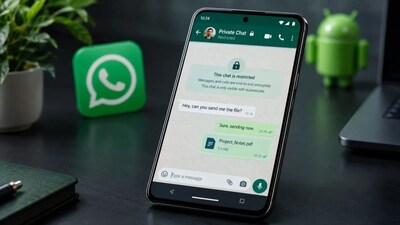
- •Lock private chats to move them into a 'Locked Chats' folder, keeping them hidden from the main chat list.
- •Control who sees your profile photo by choosing from 'Everyone', 'My Contacts', 'My Contacts except…', or 'None'.
- •Secure the entire WhatsApp app with Face ID or fingerprint, preventing unauthorized access even if your phone is compromised.
- •Use the 'View Once' feature for photos and videos, making them disappear after being viewed and preventing saving or screenshots.
Key Questions Answered
To lock a specific chat, open the profile of the chat you wish to secure on Android or iPhone, scroll down, and turn on the 'Lock Chat' option. Locked chats will be moved out of the regular chat list and into a dedicated Locked Chats folder, which you can hide further by setting a secret code.
Yes, when you send a personal photo, video, or voice message using the View Once feature, the recipient cannot save it to their Photos or Gallery. Furthermore, WhatsApp prevents them from taking screenshots or screen recordings of that media.
You can change your profile photo visibility by going to Settings > Privacy > Profile photo on Android or iPhone. From there, you can choose whether your photo is visible to Everyone, My Contacts, My Contacts except specific people, or None.