

Stories
Scan Documents on Android Without Apps: Easy Step-by-Step Guide.
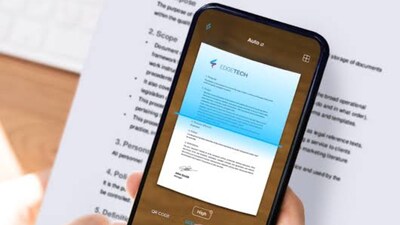
- •Smartphones are now versatile tools, capable of tasks beyond calls and social media, including document scanning.
- •You can scan documents using the Google Drive app on your Android phone without needing a separate third-party app.
- •To scan with Google Drive, open the app, tap the camera icon, frame your document, and capture the image.
- •After scanning, you can edit the document by cropping, rotating, applying filters, and adding multiple pages.
- •Some Android phone camera apps also feature a built-in document scanner for direct scanning.
Key Questions Answered
To scan documents using Google Drive, open the app and tap the camera button at the bottom right. Align the document so all four corners are visible within the blue outline, then tap capture. After taking the photo, you can crop, rotate, apply filters, add multiple pages, and finally select your preferred format like PDF or JPG before saving it.
Yes, some OEMs provide an in-built document scanner directly within their default camera app. Simply open your phone camera, point it at a document on a flat surface, tap the yellow page icon that appears on the screen, and then tap save to store the scanned document in your gallery or files folder.
After scanning a document, you can use editing tools such as crop and rotate to adjust the frame, apply filters for clarity, and use the clean option to remove unwanted parts. You can also retake the photo, delete unwanted pages, or tap the add button to include multiple pages into the same document before saving.