
Stories
Google Drive Trick: Create PDFs Instantly, No Scanner App Needed
N
News18•20-09-2026, 17:22
Google Drive Trick: Create PDFs Instantly, No Scanner App Needed
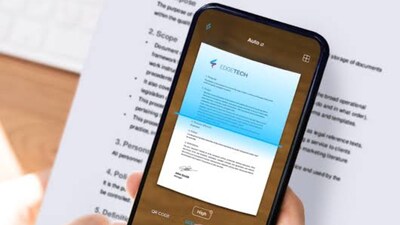
- •Many users are unaware of Google Drive's built-in document scanning feature, eliminating the need for separate scanner apps.
- •This feature not only scans documents but also recognizes them, allows multi-page PDF creation, and offers editing tools.
- •To scan, open Google Drive, tap the '+' icon, and select the 'Scan' option (camera icon).
- •After scanning, users can crop, rotate, clean, and filter documents for a crisp and clean output.
- •Scanned PDFs are securely saved in Drive and can be easily shared via WhatsApp, email, or downloaded.
Key Questions Answered
Open the Google Drive app, tap the "+" (plus) icon on the bottom left of the home screen, and select the Scan (camera icon) option. Alternatively, on some latest Android smartphones, you can use the scanner shortcut directly from the phone's home screen.
Yes, you can scan multiple pages at once by tapping the 'Add Page' option to include remaining pages, allowing Google Drive to directly create and save a single PDF file.
After clicking a photo with the scanner, you can use various editing tools located at the bottom of the screen, including Crop, Rotate, Clean, and Filter, to make your document crisp and clean.