
Stories
Blurry Photos on Expensive Phone? 8 Settings to Make Your Pictures Crystal Clear!
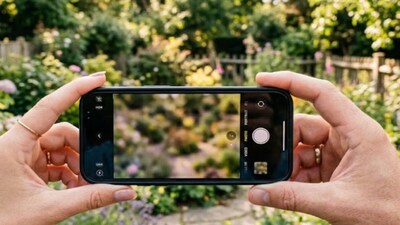
- •Don't despair if your expensive phone takes blurry photos; it might be a settings issue, not hardware.
- •Clean your camera lens thoroughly: Smudges, oil, or dust can significantly degrade photo quality. Use a microfiber cloth.
- •Check camera app settings: Ensure resolution, frame rate, and HDR mode are optimized for quality.
- •Avoid Micro Mode or Manual Focus for regular shots; reset to Default Mode for better results.
- •Utilize Focus Lock and Shake-Proof features: Enable Grid Lines, tap to focus, and keep Image Stabilization (OIS/EIS) on.
Key Questions Answered
Photos often appear blurry due to small settings issues, smudges, oil, or dust particles on the rear camera lens, rather than a broken hardware component or a bad phone camera.
You should thoroughly check the glass of your phone's rear camera and always clean the lens using a clean microfiber cloth or a soft, dry cloth. Avoid rubbing too hard to prevent scratches, and remove any low-quality tempered glass or camera protectors that might cause focus loss.
Check your resolution and frame settings to ensure you are not in Low Quality mode, and set the HDR mode to Auto. Additionally, turn on Grid Lines, use Focus Lock by tapping your subject on the screen, keep Image Stabilization (OIS/EIS) on, and reset misconfigured settings to Default Mode to make pictures clearer.